
FAQ - Frequently
Asked Questions
Bricks Create Toolkit
Where do I access Bricks Create?
If your institution or organization has granted you access to Bricks Create, you can access it through the ScholarRx Brick Management Portal.
The link can be found at: https://brick-portal.scholarrx.com/
How do I insert an image or video into a Brick?
Whether you’re working with bricks you’ve cloned or ones that you’ve created from scratch, you can easily add images and videos.
Create a new paragraph by clicking on the + icon.
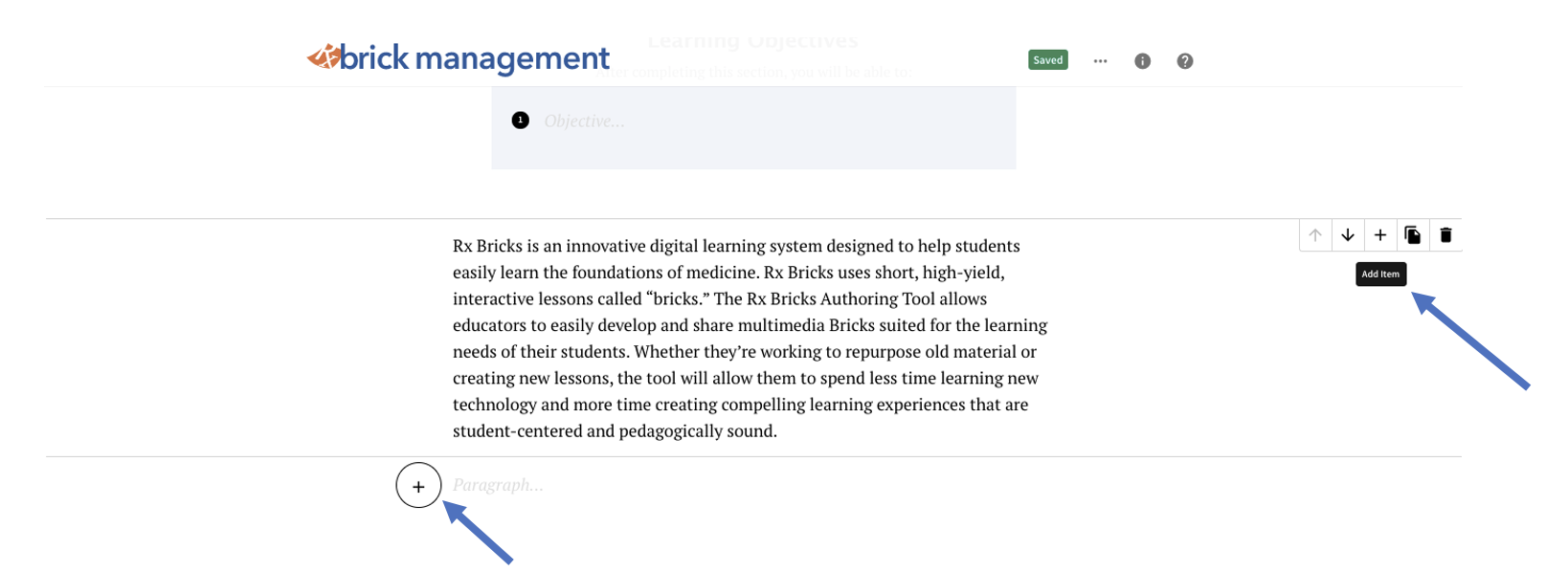
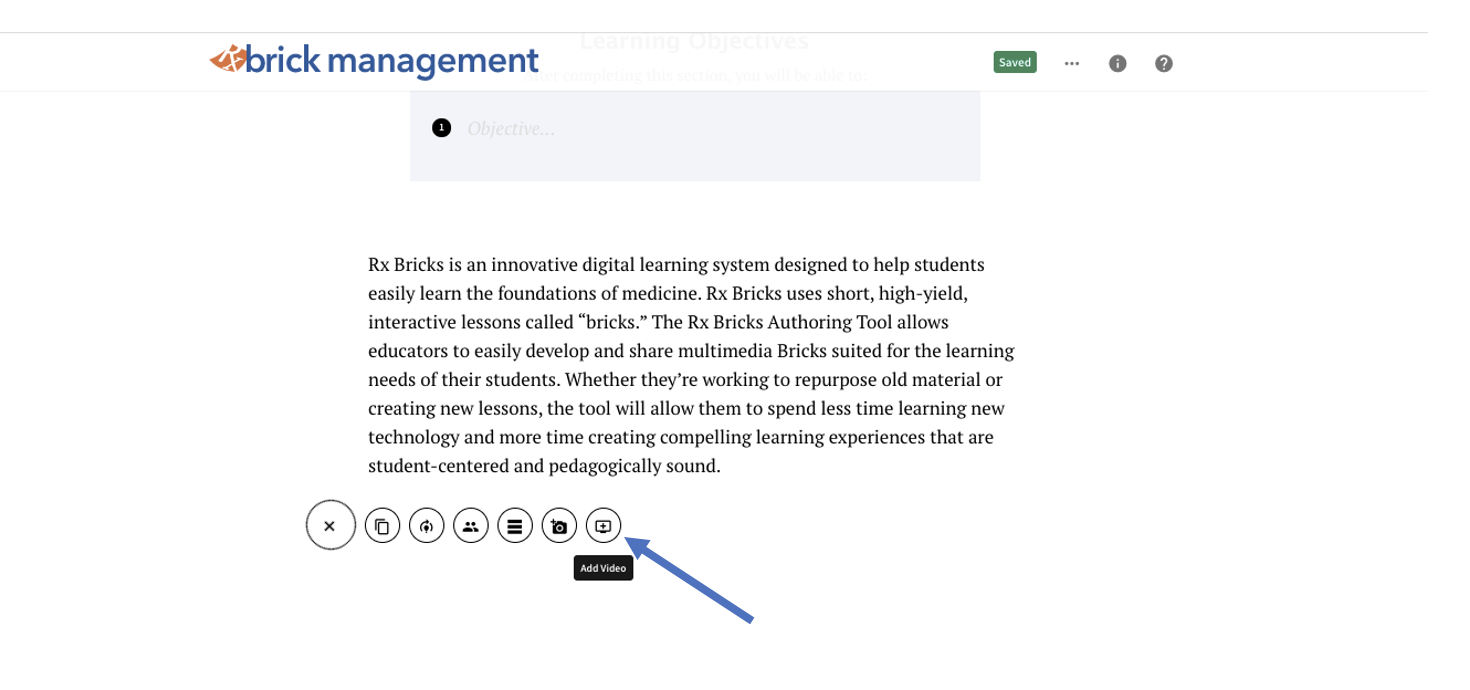
In the new paragraph, click on the + icon to open the menu. Then, click on the corresponding icon for the item you would like to add. Hovering over the icon will provide a description.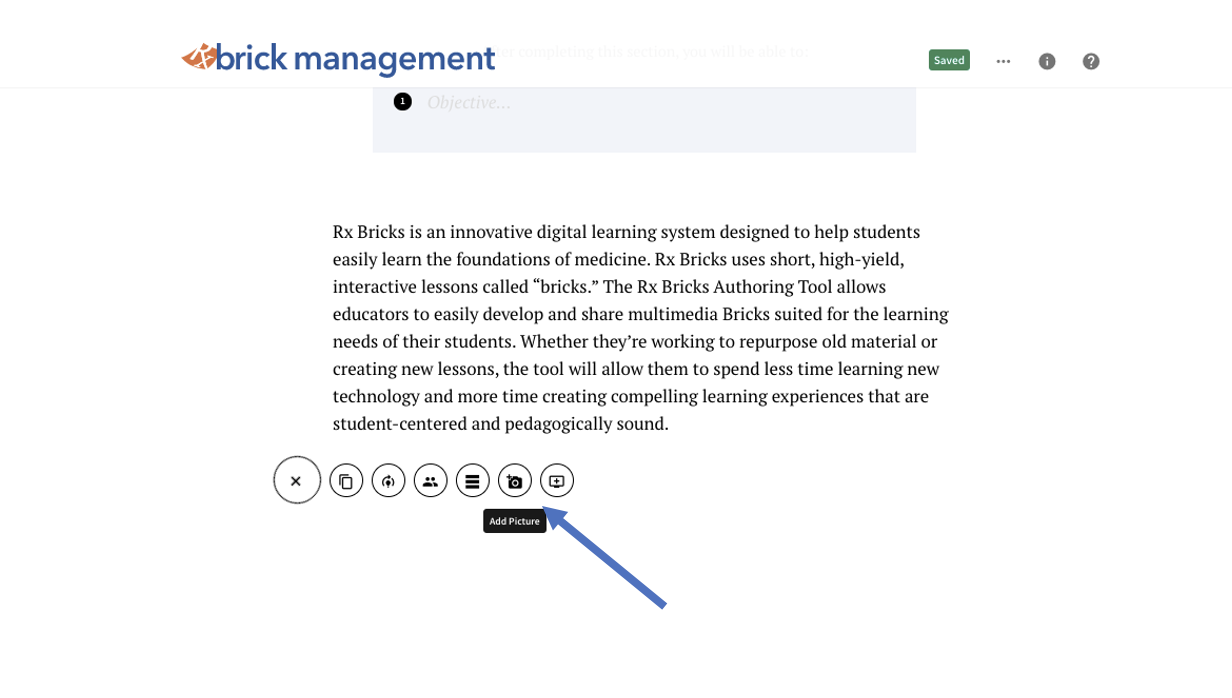
How do I clone a Brick?
As part of our goal to develop a global curricular ecosystem, we've developed a way to clone and adapt any of the bricks you see within the Rx Brick Exchange. The best way to start is to go to the Exchange and look for the three dots icon next to any brick.
- Click on the three dots icon
- Select Clone.
- You will then be asked to select the language you want to use. The brick will clone it in English by default, but you can also choose to clone and translate the brick into the following languages:
- Spanish
- French
- Portuguese
- Vietnamese
- Once you're ready, click the Clone button.
Once you clone the brick, you will now be able to begin editing it. Note that the status above the title is DRAFT.
Keep in mind that any brick you clone will inherit the rights properties of the original brick. For example, if the brick was originally published using a Creative Commons license, you will also need to publish your brick under that same license.
However, you do have the ability to control the privacy settings. You can choose to List or Unlist your brick upon or after publication.
How do I share a new Brick or a Brick that I've cloned or modified?
In Bricks Create, once you clone a brick or select Create Brick to create a brick from scratch and Publish it, you will get a pop-up window with a shareable URL (link) which can be shared anywhere.
You can also find this URL by going to Brick Management and clicking on My Bricks.
In My Bricks, there is “…” menu next to each of your bricks. Click on the “…” menu to reveal a dropdown menu. Select the Copy Exchange Link. The URL will automatically be copied to your computer’s clipboard and can be pasted wherever you would like.
Note: the url (link) for your Brick is unique to that Brick. Even if you update and re-publish the Brick, the url will remain the same. This means, if you previously shared or posted the link to your Brick, you will not have to update that link. It will remain valid.
Where can I find the Bricks that I've cloned or created?
In Brick Management, go to My Bricks.
Bricks that you clone or create will appear under My Bricks.
If you click on the All Team Bricks tab, you will be able to see the bricks that have been developed by other members of your organization.
How do I access the Rx Brick Exchange?
Head to https://exchange.scholarrx.com, your direct gateway to a world of knowledge, designed to streamline your studying process and empower your educational journey.
As you step into the realm of efficient and effective learning, the Rx Brick Exchange is there to ensure that you're fully equipped to conquer the rigors of medical study. Our exchange is more than a website; it's a community, a resource, and a testament to your commitment to excellence.
With the Rx Brick Exchange, every brick you place builds the foundation of your future success in the medical field. Your time is precious, and we respect that by providing a platform that’s not only rich in content but optimized for ease of use—because we know that when it comes to medical education, both the quality of material and the efficiency of access make all the difference.
What do students see when I share a Brick?
Whenever you share a link to a Brick and the recipients open the link, they will view the Brick in the Brick Exchange.
If the link is to a Brick that was created from scratch or cloned from a free Brick, the recipient will be able to view the entire Brick. Most but not all of these bricks carry a Creative Commons license and have a "free" label attached to them.
If the link is to a Brick that is a premium (not free) ScholarRx Brick or a clone of a premium Brick, the recipient will need to be logged in with a subscription that includes Rx Bricks. If the recipients do not meet these conditions, they will see a few preview paragraphs, but not be able to access the full Brick.
In order to see the entire Brick, they will need to either log into their existing account or create an account/have a subscription that includes Rx Bricks. They will be prompted in the platform (see image below).